After uploading a CSV file, the system processes your guest list in the background. You can monitor and manage these batch requests from the portal.
Steps to access
- After accessing the event portal
- Select Setup from the menu, then select File Import
View all previous import requests in the “Guest List Batch Requests” section.
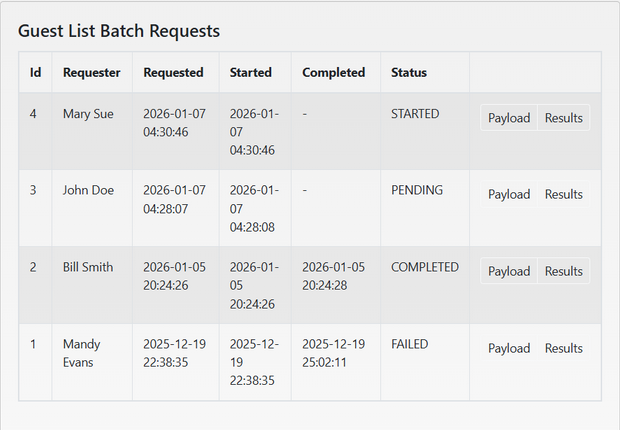
Batch Request Statuses:
- PENDING - Request is queued for processing
- STARTED - Processing has begun
- COMPLETED - All guests successfully processed
- FAILED - Errors occurred during processing
Viewing Request Details: Each batch request shows:
- Requester name
- Date requested/started/completed
- Status
Action buttons:
- Payload - View the original CSV data uploaded
- Results - See detailed processing results
Incomplete vs. Completed Processing:
- Incomplete Section - Shows guests that failed processing with error messages and retry options
- Completed Section - Shows successfully created orders with view links
Retry Failed Imports: If some guests fail to process:
- Click "Results" on the batch request
- In the "Incomplete Processing" section
- Click "Retry" on individual failed guests
- System will attempt to reprocess only that guest
Was this article helpful?
That’s Great!
Thank you for your feedback
Sorry! We couldn't be helpful
Thank you for your feedback
Feedback sent
We appreciate your effort and will try to fix the article