There are two ways to remove the connection between your business account the Zoom account.
- Via integration page in SpurrOpen.com.
- Manually via your account in Zoom.
Via integration page in SpurrOpen.com
Doing it via this method will remove the connection from the SpurrOpen.com system only. The app will still register as installed in your Zoom account. Your user data and settings will not be removed from the SpurrOpen.com system. All products that were using the connection will be set to inactive, and will require a new connection to be re-activated.
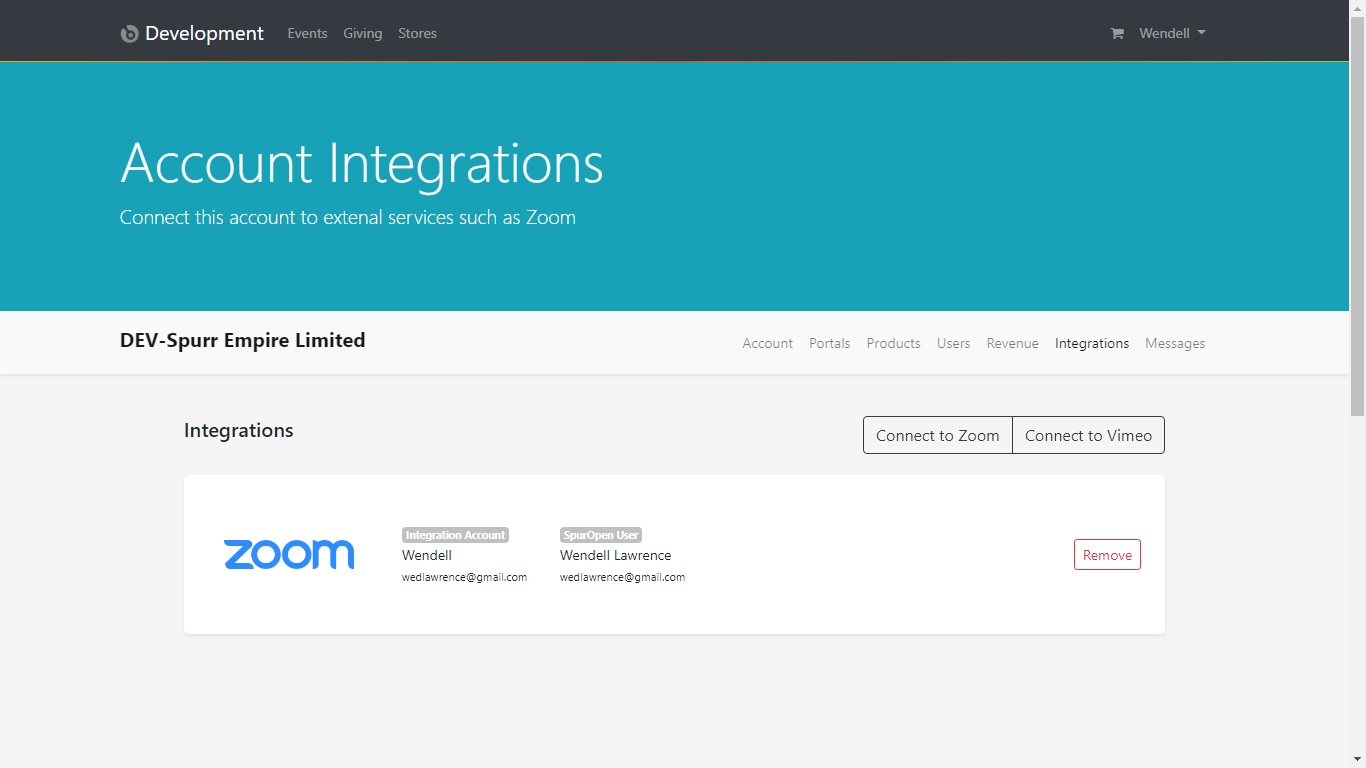
Steps
- Login to SpurrOpen.com and navigate to Manage Accounts.
- Select the respective business account from the listing.
- Click Integrations from the account menu.
- Look for the Zoom integrations and select Remove.
Note that this method does not remove Authorization from the Zoom App Marketplace. To do so, a manual uninstall via your Zoom account is required.
Manually via your account in Zoom
Doing it via this method will remove the connection from both the SpurrOpen.com system and from your Zoom account. You will have the option to also remove the user data and settings from the SpurrOpen.com system. All products that were using the connection will be set to inactive, and will require a new connection to be re-activated.
Steps
- Login to your Zoom Account and navigate to the Zoom App Marketplace.
- Click Manage > Installed Apps or search for the SpurrOpen app.
- Click the SpurrOpen app.
- Click Uninstall.
Was this article helpful?
That’s Great!
Thank you for your feedback
Sorry! We couldn't be helpful
Thank you for your feedback
Feedback sent
We appreciate your effort and will try to fix the article